
So, Microsoft killed classic SARA and replaced all Outlook troubleshooters with Get Help. Not necessarily the update we were asking for but SARA as we know it is gone and so are the troubleshooters that were available with it for the longest of time.
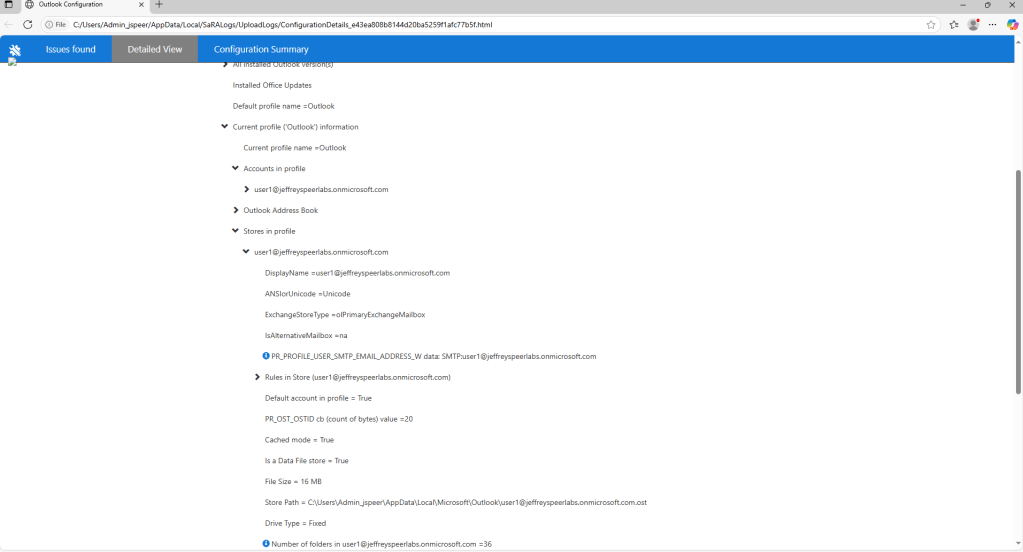
The ConfigurationDetails HTML file was by far one of the most useful single peices of information you could generate on any given device and it would output all the data you could possibly need regarding a user’s Office installation, Outlook’s folder structure, applied policies and much much more.
That being said, I was able to build a PowerShell script that generates and extracts it for you without even needing to install any troubleshooter or manuipulate, well, anything at all in this case. It does it all for you and populates the report in your default browser just like goold old times. It takes advantage of the Entireprise version of Support and Recovery Assistant by ultimately invoking the scenario called ExpertExperienceAdminTask.
Prerequisites:
1. This script assumes you have admin rights on the device you are running this on
2. This will only work with Outlook Classic
3. Edge is installed
The Script:
Click to go get PowerShell script from PowerShell Gallery
As you can see the script first queries to check if the UploadLogs folder exists or not, if it does it deletes it. It then proceeds to reach the Microsoft CDN where the installer is stored, downloads and executes it in the background, runs the scenario and then commences to periodically check if the files have been created or not to stop and locate the newly created ConfigurationDetails HTML file and opens it.
If you are running this on a local machine you can just copy paste the script into something like the PowerShell ISE and run from there. However if you need to run this on a remote computer here are some steps to package this together to share:
- Create a folder on your Desktop called GetSaraScan
- Save the PowerShell script as GetSaraScan.ps1 and place on your Desktop
- Create a text file and input the below code:
@echo off
setlocal

REM Get the dir of the batch file
set "scriptDir=%~dp0"

REM Run the PowerShell script
powershell -NoExit -File "%scriptDir%GetSaraScan.ps1"

endlocal
4. Save this file as GetSaraScan.bat
5. You can now zip these up and send to the affected device and just open the folder and double click the bat file to launch the script.
Your folder should look like this:

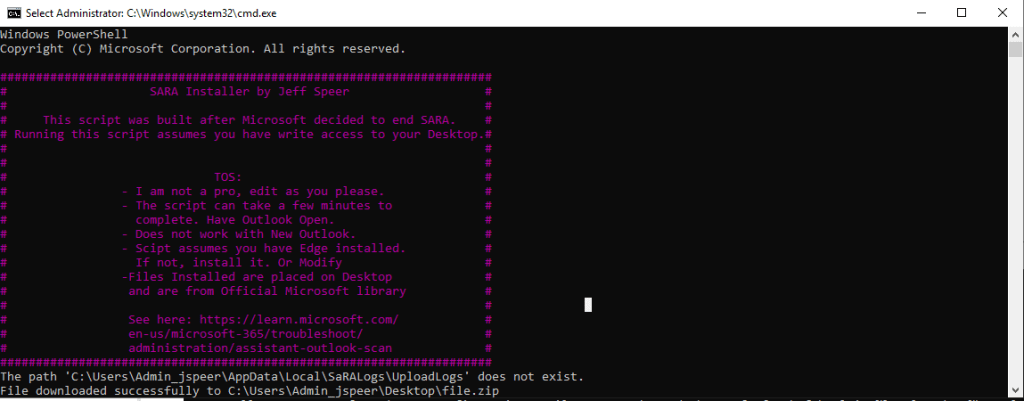
Now just run the .bat file and CMD should launch. You should be greeted with the following:
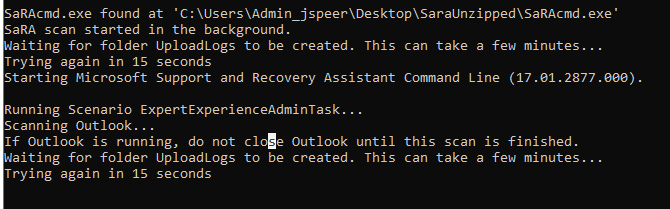
Progress should continue until you are met with an exit code:
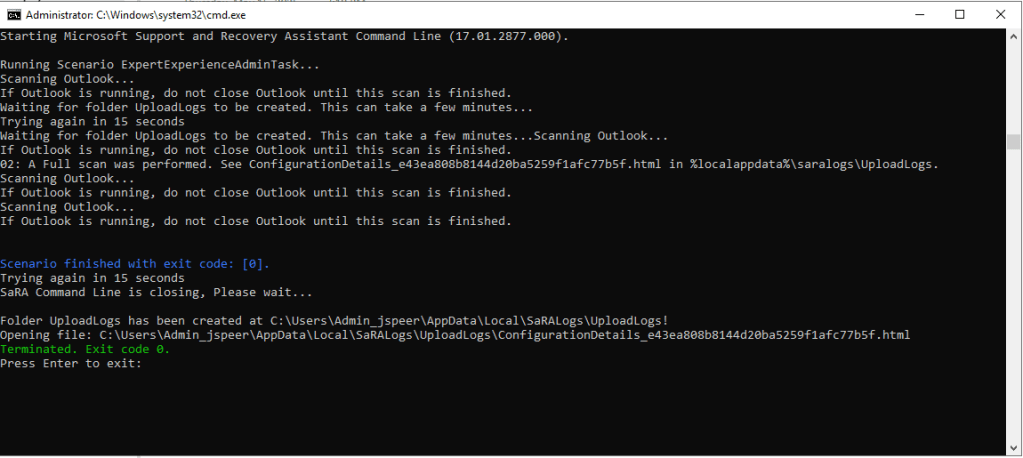
As you can see it detects where the log is now present, locates it and sends it to Edge to open and now you have your ConfigurationDetails HTML to go dive into
Feel free to modify as needed and let me know in the comments below if this worked for you or helped you in any way shape or form! I will continue to research the Enterprise version of SARA to see what else we can extract and use good ole PowerShell for to replicate. Again, any feedback is greatly appreciated! Happy Outlooking for now.

Leave a comment