
I recently discovered a feature in Outlook classic which was not working all of a sudden. Said feature would allow you to select multiple emails and send them to OneNote using the dedicated Send to OneNote Add-in.
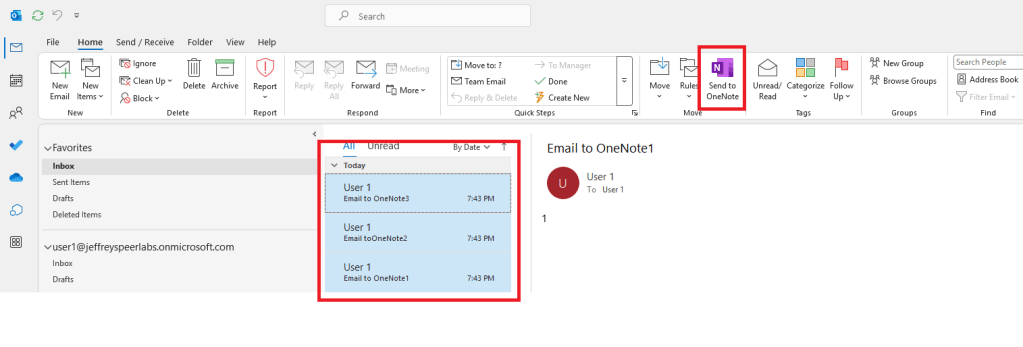
For what ever reason I narrowed this down to two sets of possible behavior:
- Selecting one email shows the icon enabled in the ribbon but selecting more than one disables the icon
- Selecting even a single email will disable the icon entirely
After confirming OneNote and Outlook (classic) were both up to date and on the same build, I verified the LoadBehavior value of the add-in itself was set to its default of “3”. I also noticed a slight but not impactful difference in the behavior between Windows 10 and Windows 11.
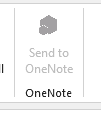
It even got to the point where one a single instance the icon had a completely different appearance
After performing re-installs of Office and checking each and every other registry value I could come across that involved add-ins and of course obviously checking if it was disabled at the client level I came across 2 things that need to check out in order for the functionality to return. After performing re-installs of Office and checking each and every other registry value I could come across that involved add-ins and of course obviously checking if it was disabled at the client level I came across 2 things that need to check out in order for the functionality to return.
The first item on our list is buried in Outlook settings. Navigate to File –> Options –> Advanced and scroll all the way down and you’ll find Use Send to OneNote for Windows 10, if available. Make sure this is unchecked. For what ever reason, Outlook stemming from an enterprise plan would still allow you to use a standalone version of OneNote, but the option is there and we want it unchecked.

Next step involves default apps. Depending on your version of Windows these steps will be slightly different but either way head into your Settings app or you can type “Default Apps” in the search bar.
On Windows 10 you will have to head into Choose Default Apps by Protocol and ensure all OneNote protocols have OneNote selected as the default:
.one : OneNote
.onepkg: OneNote
.onetoc: OneNote
.onetoc2: OneNote *
OneNote: OneNote
OneNote-CMD: OneNote *
OneNoteDesktop: OneNote
* during testing these two could be left blank
As for Windows 11 you can go into Default Apps and search for OneNote, choose it, to bring up the relevant protocol:actions. Ensure it looks like this:
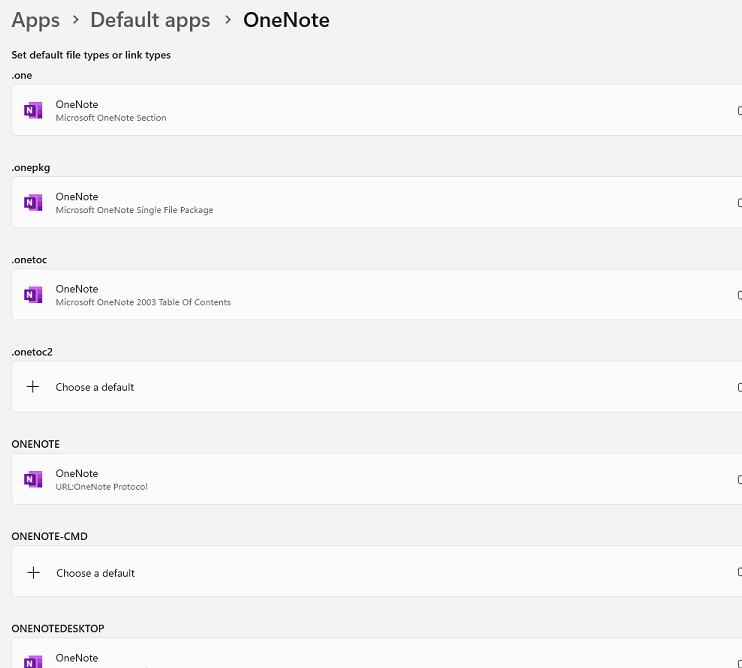
Head back to Outlook and you should now be able to select multiple emails and the Ribbon add-in for Send to OneNote will not become disabled or otherwise greyed out.
Hope this helps and please leave any comments or questions below.

Leave a comment